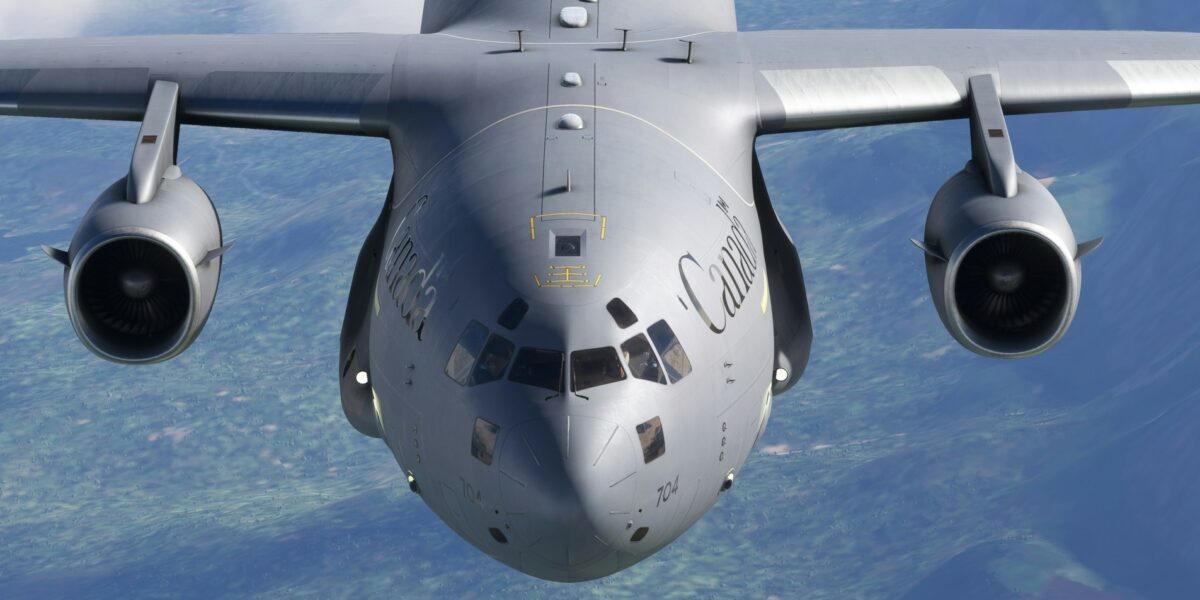
Delta Simulations C-17 Setup Guide: Installation to First Flight

The Delta Simulations C-17 Globemaster is the most realistic C-17 simulation available for home flight simmers. This comprehensive guide walks you through downloading, installing, configuring, and flying this remarkable freeware addon—from first download to your first successful landing.

Last Updated: January 2026

Before You Begin: Requirements

Software Requirements

  • Microsoft Flight Simulator 2020 (Standard, Deluxe, or Premium)
  • Windows 10/11 (64-bit)
  • Latest MSFS update installed

Hardware Requirements

Component Minimum Recommended
CPU Intel i5-8400 / Ryzen 5 2600 Intel i7-12700K / Ryzen 7 5800X
GPU GTX 1070 / RX 5700 RTX 3070 / RX 6800
RAM 16GB 32GB
Storage SSD (150GB+ free) NVMe SSD

Recommended Controllers

While the C-17 can be flown with any controller, these provide the most immersive experience:

  • Yoke: Honeycomb Alpha or Logitech G Pro Flight Yoke
  • Throttle: Honeycomb Bravo Throttle Quadrant (4 levers ideal for 4 engines)
  • Rudder Pedals: Thrustmaster TFRP or Logitech G Pro Flight Pedals

Step 1: Download the Delta Simulations C-17

Option A: Flightsim.to (Recommended)

  1. Visit flightsim.to/file/12408/msfs-native-c-17-globemaster
  2. Click the Download button
  3. Wait for the ~1.5GB download to complete
  4. The file will be named deltasimulations-c17.zip

Option B: GitHub (Latest Development Version)

  1. Visit github.com/Delta-Simulations/MSFS-C-17
  2. Click Releases on the right sidebar
  3. Download the latest deltasimulations-c17.zip

Note: The GitHub version may have newer features but could be less stable than the Flightsim.to release.

Step 2: Find Your Community Folder

The Community folder location depends on how you installed MSFS:

Microsoft Store Version

C:\Users\[YourUsername]\AppData\Local\Packages\Microsoft.FlightSimulator_8wekyb3d8bbwe\LocalCache\Packages\Community

Steam Version

C:\Users\[YourUsername]\AppData\Roaming\Microsoft Flight Simulator\Packages\Community

Custom Install Location

If you chose a custom location during MSFS installation, check your UserCfg.opt file for the Community folder path.

Quick Tip: In MSFS, go to Options → General → Developers and enable Developer Mode. Then use the Help menu to find your Community folder location.

Step 3: Install the C-17

  1. Extract the downloaded deltasimulations-c17.zip file
  2. You should see a folder named deltasimulations-c17
  3. Copy this entire folder to your Community folder
  4. Your folder structure should look like:
    Community/
    └── deltasimulations-c17/
        ├── layout.json
        ├── manifest.json
        └── SimObjects/
            └── Airplanes/
                └── DeltaSim_C17/
    

Important: Do NOT extract directly into Community—make sure the deltasimulations-c17 folder is inside Community.

Step 4: First Launch and Aircraft Selection

  1. Launch Microsoft Flight Simulator
  2. From the main menu, select Aircraft
  3. Search for “C-17” or scroll to find “Delta Simulations C-17 Globemaster”
  4. Select the aircraft and choose a livery

Available Liveries

The base package includes several liveries:

  • USAF Standard Gray
  • USAF Special Markings
  • RAF (Royal Air Force)
  • RAAF (Royal Australian Air Force)

Additional liveries are available on Flightsim.to under “C-17 Liveries.”

Step 5: Understanding the Cockpit

The Delta Simulations C-17 cockpit is accurate to within 0.5 inches of the real aircraft. Here’s an orientation:

Main Instrument Panel

Display Location Function
PFD (Primary Flight Display) Directly in front of each pilot Attitude, airspeed, altitude, heading
ND (Navigation Display) Outboard of each PFD Map, route, weather
EICAS (Engine Display) Center upper panel Engine parameters, warnings
MFD (Multi-Function Display) Center lower panel Systems, checklists, FMS

Key Panels

  • Overhead Panel: Electrical, hydraulics, pneumatics, lighting
  • Center Pedestal: Throttles, FMS CDU, radio stack
  • Glareshield: Autopilot controls, warning annunciators

Step 6: Cold and Dark Startup Procedure

The C-17 startup follows a specific sequence. Here’s the abbreviated procedure:

Battery and External Power

  1. Set BATTERY switch to ON (overhead panel, left side)
  2. Connect external power if available (EFB option)
  3. Verify battery voltage on EICAS

APU Start

  1. Set APU switch to START
  2. Monitor APU EGT and RPM on EICAS
  3. Wait for APU to stabilize (~30 seconds)
  4. Set APU GEN switches to ON

Engine Start (Each Engine)

  1. Ensure APU bleed air available
  2. Move engine START switch to GRD (Ground)
  3. At 20% N2, move THROTTLE to IDLE
  4. Monitor EGT, N1, N2 during start
  5. Repeat for remaining engines (typically 3-2-4-1 sequence)

Post-Start Checks

  1. Verify all engines stable at idle
  2. Check hydraulic pressures
  3. Test flight controls
  4. Configure navigation and communication radios
  5. Set altimeters and heading

Step 7: Using the Electronic Flight Bag (EFB)

The EFB tablet (accessible via cockpit interaction) provides:

  • Aircraft Configuration: Weight, fuel, payload settings
  • Ground Equipment: Spawn/remove chocks, cones, GPU
  • Checklists: Interactive procedure checklists
  • Settings: Sound volume, lighting presets, failures
  • SimBrief Integration: Import flight plans

Accessing the EFB

Click on the tablet mounted on the side of the cockpit, or use the assigned keyboard shortcut (check controls settings).

Step 8: Basic Flight Operations

Takeoff Configuration

  • Flaps: Set appropriate for weight (typically Flaps 1/2)
  • Trim: Set takeoff trim per performance data
  • Speeds: Verify V1, VR, V2 calculated
  • Autopilot: Set initial altitude and heading

Typical Takeoff

  1. Advance throttles smoothly to takeoff thrust
  2. Monitor engine parameters
  3. At VR, smoothly rotate to 10-12° pitch
  4. Positive rate—gear up
  5. At acceleration altitude, reduce to climb thrust
  6. Retract flaps on schedule

Cruise

  • Typical cruise altitude: FL280-FL350
  • Cruise speed: M0.74-M0.77
  • Use autopilot: LNAV/VNAV for route following

Approach and Landing

  1. Plan descent to arrive at pattern altitude
  2. Extend flaps incrementally
  3. Gear down by final approach fix
  4. Maintain approach speed (Vref + wind correction)
  5. Aim for touchdown zone
  6. Deploy thrust reversers after touchdown

Step 9: Troubleshooting Common Issues

Aircraft Not Appearing in Menu

  • Verify folder is correctly placed in Community folder
  • Check that folder name is exactly deltasimulations-c17
  • Restart MSFS completely

Poor Performance / Low FPS

  • Lower MSFS graphics settings
  • Reduce cockpit rendering quality
  • Disable AI traffic
  • Update GPU drivers

Systems Not Working

  • Check for conflicts with other mods
  • Verify aircraft is in “Ready to Fly” state (not Cold and Dark) if testing
  • Join the Delta Simulations Discord for support

Missing Liveries

  • Download additional liveries from Flightsim.to
  • Place livery folders in the correct aircraft directory

Step 10: Recommended Settings

MSFS Graphics Settings for C-17

Setting Recommendation
Glass Cockpit Refresh Rate Medium or High
Cockpit Display Resolution 1024×1024 minimum
Terrain LOD 100-150
Object LOD 100-150

Additional Resources

  • Delta Simulations Discord: Real-time support and community
  • Official Documentation: Included in download package
  • Flightsim.to Forums: User tips and troubleshooting
  • YouTube Tutorials: Search “Delta Simulations C-17 tutorial”

What’s Next?

Once you’re comfortable with basic operations, explore:

  • Tactical approaches and assault landings
  • Formation flying with other simmers
  • Long-haul oceanic crossings
  • Night and IFR operations
  • Emergency procedure practice

The Delta Simulations C-17 offers hundreds of hours of learning and enjoyment. Take your time mastering each system, and you’ll develop skills that translate to understanding the real aircraft.

Questions about setup? Visit our contact page or check the Delta Simulations Discord community.

Jason Michael

Jason Michael

Author

Jason Michael is a Pacific Northwest gardening enthusiast and longtime homeowner in the Seattle area. He enjoys growing vegetables, cultivating native plants, and experimenting with sustainable gardening practices suited to the region's unique climate.

✈️ Get the latest C-17 news & insider content

Shop C-17 Gear

Subscribe for Updates

Get the latest articles delivered to your inbox.